
Random Seating Chart Generator
To make a random seating chart, paste names and press Shuffle; the random seating chart generator puts each person on a seat. You get seven layouts for 2 to 80 people, locked seats, keep-apart rules, and a seed that repeats any chart. Rules work per table, so in Rows and Horseshoe, where each desk is its own table, a sit-together rule can never be met.
Free · runs in your browser · nothing is uploaded
Recent
Your last 10 settings, saved only in this browser. Nothing is uploaded.
At a glance
A random seating chart generator shuffles a list of names onto the seats of a drawn layout, with optional locked seats and keep-apart or sit-together rules. Each shuffle shows a seed, and typing that seed again repeats the same chart.
- The tool seats between 2 and 80 people, and it opens with Rows for 24.
- It offers seven layouts: Rows, Pods of 4, Horseshoe, U-shape, Round groups of 6, Lecture rows and Lab benches.
- Each shuffle shows a seed, and typing the same seed later repeats the chart exactly.
- A locked person stayed in the same seat in 100 of 100 test shuffles.
- The finished chart can be exported as PNG, SVG, PDF or CSV and printed on Letter, A4, 18 x 24 or 24 x 36 paper.
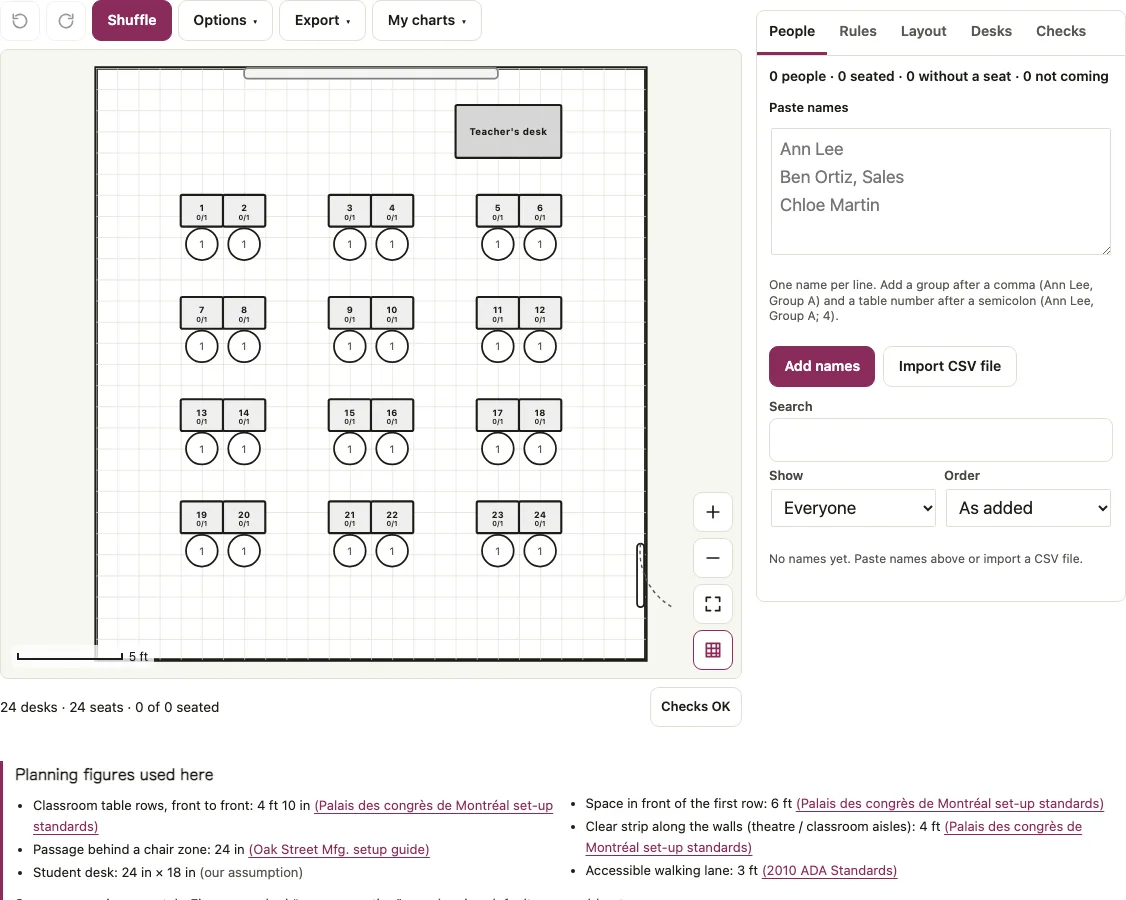
How to use the random seating chart generator
Open the People tab. Paste names, one per line. “Name, group” adds a group and “Name; table” fixes a table. Import CSV file reads a spreadsheet, and a name that appears twice is flagged.
Open the Layout tab, pick a Layout, set the number of people and press Build this layout. Rows for 24 is the starting point.
If two people must or must not share a table, open Rules, choose the two names, tick Must for a firm rule and press Add rule. Pods of 4, Round groups of 6, Lab benches and the U-shape suit rules best.
Press Shuffle. The status line reads like “24 of 24 seated (seed 4821)”.
Lock anyone who must stay put with the lock button beside a seated name. Under Options, Lock everyone in the front row pins the first row, and Keep people who already have a seat; only seat the rest seats only the others.
Press Shuffle again for a new arrangement. Undo, in the toolbar, brings the previous chart back.
To repeat a result, type a seed under Options in Seed (same seed, same result) and press Seat now (or Shuffle). New seed picks another.
Export the finished chart as PNG, SVG, PDF or CSV, copy the seating list, or print it on Letter, A4, 18 x 24 or 24 x 36 paper.
Why the same seed gives the same shuffle
A seed is a starting number for the shuffle, so the same seed, names, layout and locked seats always produce the same chart. Any text or number works as a seed, and a typed seed is used by the next shuffle.
With seed 1234 on a sample list of 24 names in Rows (Ava Brown, Noah Kim, Mia Lopez and 21 more), Ava Brown sits at desk 19 and Noah Kim at desk 4 on every run. Seed 1235 moves Ava to desk 6 and Noah to desk 19, and 22 of the 24 people change desks. Change a name or a locked seat and the result changes, even with the same seed.
As a spread check, over 2,400 different seeds one person landed at each of the 24 desks between 76 and 118 times, against an even spread of 100.
Can I keep certain students apart?
Yes, as long as the layout puts more than one seat at a table. Rules work on tables: “together” means the same table, and “apart” means different tables. A rule can name one person, two people or a group, and ticking Must makes it firm.
In Pods of 4, one must keep-apart rule and one must sit-together rule were both met in 200 of 200 test shuffles. In Rows and Horseshoe every desk is its own one-seat table, so keep-apart is always met and sit-together can never be, and Checks then says “Rule broken: A and B are at different tables.” Rules work per table. In Rows and Horseshoe each desk is a table, so use Pods, Round groups, U-shape or Lab benches when you need people kept together or apart.
| Layout | What the page states |
|---|---|
| Rows | Each desk is its own table, so keep-apart is always met and sit-together can never be. |
| Pods of 4 | One must keep-apart rule and one must sit-together rule were both met in 200 of 200 test shuffles. |
How does the shuffle treat locked seats and rules?
Locked people never move, and a locked person stayed in the same seat in 100 of 100 test shuffles. Must rules come before wishes, and the shuffle never puts more people at a table than it has seats, so a full table sends the next person to another one.
In Random order, people who share a Party / couple entry in their edit panel are kept at one table before anything else is shuffled, so a pair can arrive together without a rule. A rule you leave unticked is a wish that may give way. Small lists with 14 or fewer movable people can be searched exhaustively, and larger lists use a seeded search.
Short answers to common questions
How do I make a random seating chart?
Paste the names in the People tab, choose a layout and press Shuffle. Add rules or locks if some people must sit in a given place, then shuffle again and export the chart.
Can I reshuffle quickly?
Yes. Shuffle gives a new chart each time, and Undo in the toolbar returns to the last one. Lock the people you are happy with first, and only the others move.
Will it respect IEP and 504 seating needs?
There is no IEP or 504 field, so the page cannot read those needs. Seat the student where the plan requires, press the lock button beside the name, and every later shuffle leaves that seat alone.
Can I build a seating chart from my class list?
Yes. Paste the list or import a CSV file with name, group, party, meal, table, seat or note columns. The same names then appear on the other Seatlark seating pages in that browser.
Can I print the chart or make one for a substitute?
Yes. Use Print or Download PDF. Leave names blank (printable template) gives an empty chart to fill in by hand.
Does it work for any classroom layout?
It places names on the seven layouts above, and you can add or move tables yourself, but it does not draw an exact room shape. Checks also runs a 36 in walking-lane check from the door, a planning aid for the layout you drew. Plan the room first on the classroom layout page.
How do I get the same random seating chart again?
Each shuffle shows a seed in the status line, such as seed 4821. Type that seed under Options in the Seed field and press Seat now or Shuffle, and the same names, layout and locked seats give the same chart. Press New seed to pick another.
How do I keep two students apart in a random seating chart?
Yes. Open Rules, choose the two names, tick Must for a firm rule and press Add rule. Rules work on tables, so use Pods of 4, Round groups of 6, Lab benches or the U-shape. In Rows and Horseshoe each desk is its own table, so keep-apart is always met and sit-together can never be.
Related tools
- Classroom seating chart: use it for a roster-first workflow with a layout comparison for a class.
- Classroom layout: use it to plan the room and walking lanes before you place names.
- Bus seating chart: use it to shuffle riders onto numbered bus seats.
- Table seating chart: use it for dinners where groups share tables.
- Name tag generator: use it to print tags for the same list of names.
- Seating chart template: use it when you want a blank printable chart.
- Classroom, meeting and random seating tools: use the group page to compare all the seating tools for a class or a meeting.