
Classroom Seating Chart
How do you make a classroom seating chart? Paste the roster, choose one of seven desk layouts and press Shuffle. The chart seats 2 to 80 students at random or A to Z by last name, keeps chosen students at different tables and lets you lock the front row. The key limit is that rules work on tables, not on neighbouring seats.
Free · runs in your browser · nothing is uploaded
Recent
Your last 10 settings, saved only in this browser. Nothing is uploaded.
At a glance
A classroom seating chart is a numbered desk map made from a class roster. The Seatlark tool seats 2 to 80 students in one of seven desk layouts, at random or A to Z by last name.
- The chart seats 2 to 80 students at random or A to Z by last name.
- The Layout tab offers seven starting layouts: Rows, Pods of 4, Horseshoe, U-shape (2-seat tables), Round groups of 6, Lecture rows and Lab benches.
- A "Keep at different tables" rule is broken only when two students share a table, and rules work on tables, not on neighbouring seats.
- In Pods of 4, a Must keep-apart rule was kept in all 200 test shuffles.
- The CSV reader accepts up to 5,000 names.
- Shuffle picks a new four-digit seed each time unless you type one under Options.
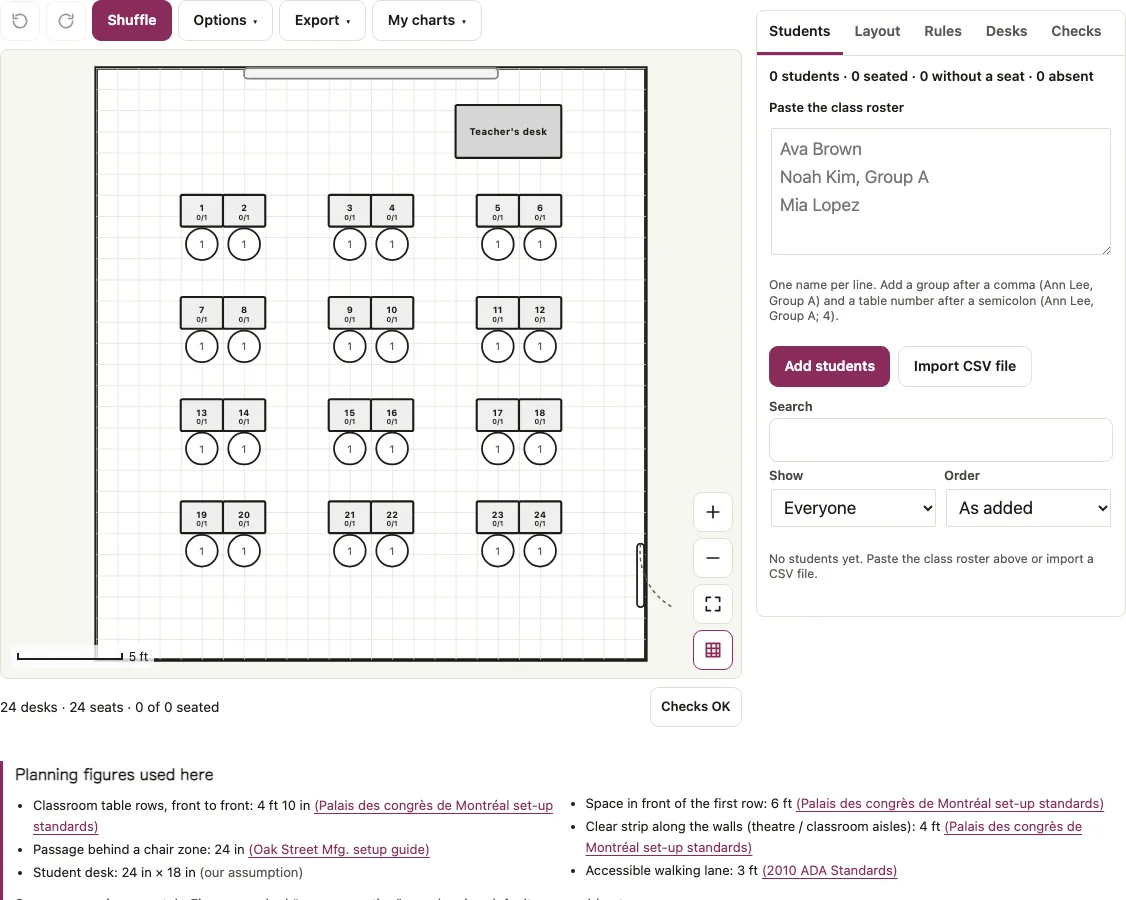
How to use the classroom seating chart
Open the Layout tab. Under Starting layout choose Rows, Pods of 4, Horseshoe, U-shape (2-seat tables), Round groups of 6, Lecture rows or Lab benches, set Students (2 to 80) and press Build this layout.
Open the Students tab, type or paste the class roster into Paste the class roster, one name per line, and press Add students. Put a group after a comma (“Noah Kim, Group A”), or use Import CSV file.
Press Shuffle. The status line reports the result, for example “24 of 24 seated (seed 1234)”.
Open the Rules tab, choose Keep at different tables or Sit at the same table, pick the two students (or a group), tick Must for a firm rule and press Add rule. Shuffle again.
To seat someone by hand, drag the name onto a seat, or tap the name and then the seat. The lock button beside a seated name pins that student.
Shuffle once, open Options, press Lock everyone in the front row, then shuffle again. Locked students stay put.
Open Export and choose Download PDF or Print.
The Export menu also offers PNG, SVG, CSV and Copy seating list, in Letter, A4 or poster sizes. Leave names blank (printable template) prints an empty chart, and Save plan file keeps a copy you can reopen later.
What is the best seating arrangement for a classroom?
No single arrangement is best, because it depends on what students do in the lesson. Rows, the traditional layout, face every desk to the front board. Pods put four desks together for group work, while a horseshoe or U-shape turns students towards one another. The table shows what each starting layout needs for 24 students.
| Layout | Tables or desks | Seats each | Room drawn |
|---|---|---|---|
| Rows | 24 | 1 | 26 x 28 ft |
| Pods of 4 | 6 | 4 | 30 x 25 ft |
| Horseshoe | 24 | 1 | 31 x 30 ft |
| U-shape (2-seat tables) | 12 | 2 | 36 x 34 ft |
| Round groups of 6 | 4 | 6 | 24 x 27 ft |
| Lecture rows | 4 | 6 | 22 x 21 ft |
| Lab benches | 8 | 3 | 24 x 33 ft |
The rooms are drawn just big enough, so enter your real room size under Room before judging the fit. Rows use 24 x 18 in desks in pairs, with a 36 in lane between pairs and 58 in from one row to the next. The Checks tab also looks for a 36 in walking lane from the door to every desk, a planning aid and not an accessibility or code review. All seven starting layouts for 24 students pass it. The classroom layout page is the same check without the roster.
Same seed, same seating chart
A seed is the number that starts the shuffle, so the same seed, names and layout always return the same chart. Seed 1234 gave an identical chart on two runs, as did 50 other seeds. Seed 1235 instead of 1234 moved 22 of the 24 students to a different desk.
Shuffle picks a new four-digit seed each time unless you type one under Options, and the seed also appears in the page address as ?seed=.
Can I keep certain students apart?
Yes, with one limit: rules work on tables, not on neighbouring seats. “Keep at different tables” is broken only when two students share a table, and “Sit at the same table” is met only when they do. A rule can name a person or a group.
In Pods of 4, a Must keep-apart rule was kept in all 200 test shuffles. In Rows and Horseshoe every desk is its own one-seat table, so keep-apart is always met and sit-together can never be. Rules work per table. In Rows and Horseshoe each desk is a table, so use Pods, Round groups, U-shape or Lab benches when you need students kept together or apart. The Rules tab shows a note saying so when most tables are single desks.
Short answers to common questions
Can I import my class roster?
Yes. Paste one name per line, or press Import CSV file. The CSV reader recognises name, first and last name, group, meal, table, seat and note columns, flags a name that appears twice, and accepts up to 5,000 names.
Can it place students randomly or A to Z?
Both. Shuffle uses the Random seating order on this page. In Options, Seating order can be changed to “A to Z by last name”, which fills desks in plan order, or to “Keep groups and parties together”.
Can I print the chart for a substitute?
Yes. Download PDF puts the chart on page 1 and a seating list by desk after it, and Print gives the same sheets. Choose Leave names blank (printable template) first for an empty chart to fill in by hand.
Can I leave out absent students?
Yes. Open a student’s edit pencil and set RSVP to Declined. Shuffle skips that student, and the roster counts them as absent.
Is my students’ data private?
The roster and chart are saved only in your browser’s local storage. Nothing is uploaded and there is no account. To move a plan to another device, use Save plan file and Open plan file.
Can I make a different chart for each class period?
Yes. My charts in the toolbar keeps every chart in its own slot: press New chart for each period, rename it, and open any chart from the same menu. A new chart starts with the last roster you edited, so replace the names for the new class. Charts are saved in this browser only, and Save plan file keeps a copy.
What is the traditional seating arrangement in a classroom?
The traditional seating arrangement in a classroom is rows, in which every desk faces the front board. Pods put four desks together for group work, while a horseshoe or U-shape turns students towards one another. No single arrangement is best, because it depends on what students do in the lesson.
Can I keep two students apart in a seating chart?
Yes, with one limit: rules work on tables, not on neighbouring seats. Choose Keep at different tables, pick the two students, tick Must for a firm rule and press Add rule. The rule is broken only when both students share a table. In Rows and Horseshoe every desk is its own table, so keep-apart is always met.
Related tools
- Random seating chart generator: use it when you only need a quick shuffle onto a layout.
- Classroom layout: use it to plan the room, door and walking lanes before you seat anyone.
- Bus seating chart: use it for field trips and team buses.
- Name tag generator: use it to print a tag for each student from the same list.
- Table tent cards: use them for fold-over name tents on desks.
- Seating chart template: use it for a blank printable chart for any event.
- Classroom, meeting and random seating tools: use the group page to compare all seating tools for a class or a meeting.